⇧shift
Convert a copy
Six formats picked for your file. Saved next to the original.
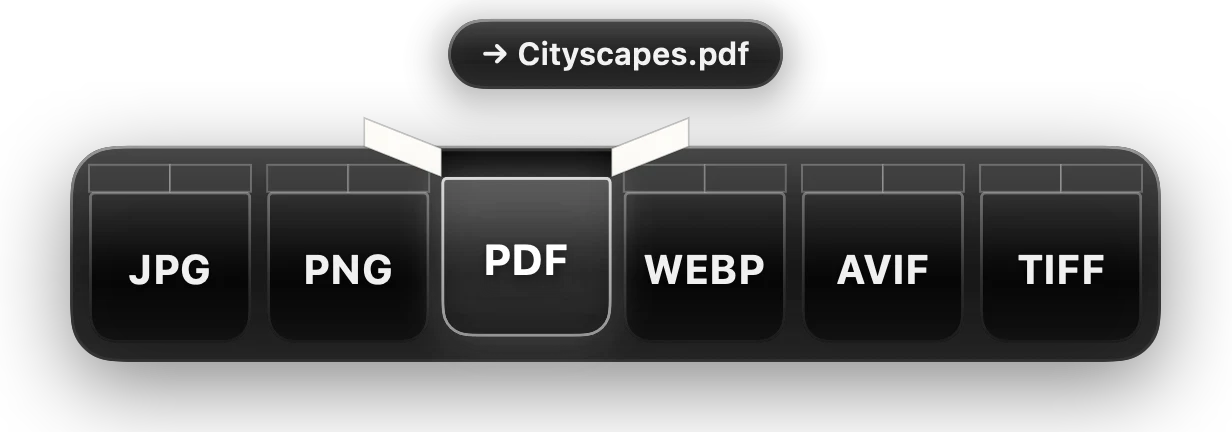
Hold Shift while you drag a file in Finder or File Explorer. Drop it into a box, and the converted copy lands beside the original.
Free for Mac and Windows. Mac: Apple silicon, macOS 14 or later. Windows: 64-bit Windows 10 (version 2004) or later, or Windows 11.
On Windows, if you see “Windows protected your PC”, click More info, then Run anyway. Isomer isn’t code-signed yet.
macOS will say Apple could not verify Isomer is free of malware.
That’s because Isomer isn’t notarized by Apple yet, not because anything is wrong.
Isomer was blocked to protect your Mac.Click Open Anyway.
Windows will say Windows protected your PC.
That’s because Isomer isn’t code-signed yet, not because anything is wrong.
Six formats picked for your file. Saved next to the original.
The original moves to the Trash (the Recycle Bin on Windows) once the new file is ready. Hold Control (Ctrl) as well as Shift.
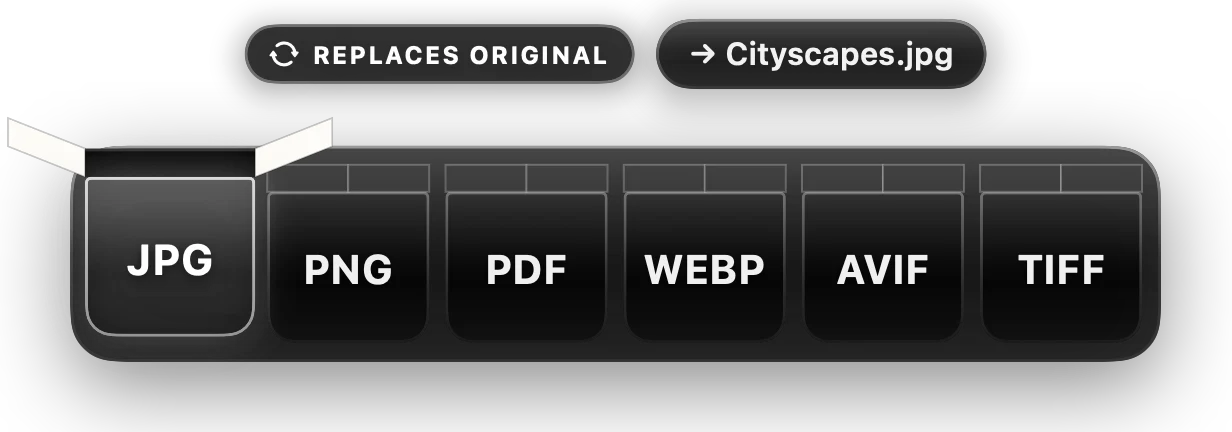
Hold Option (Alt on Windows) as well as Shift. Compress, crop, trim, redact and more, without opening an app.
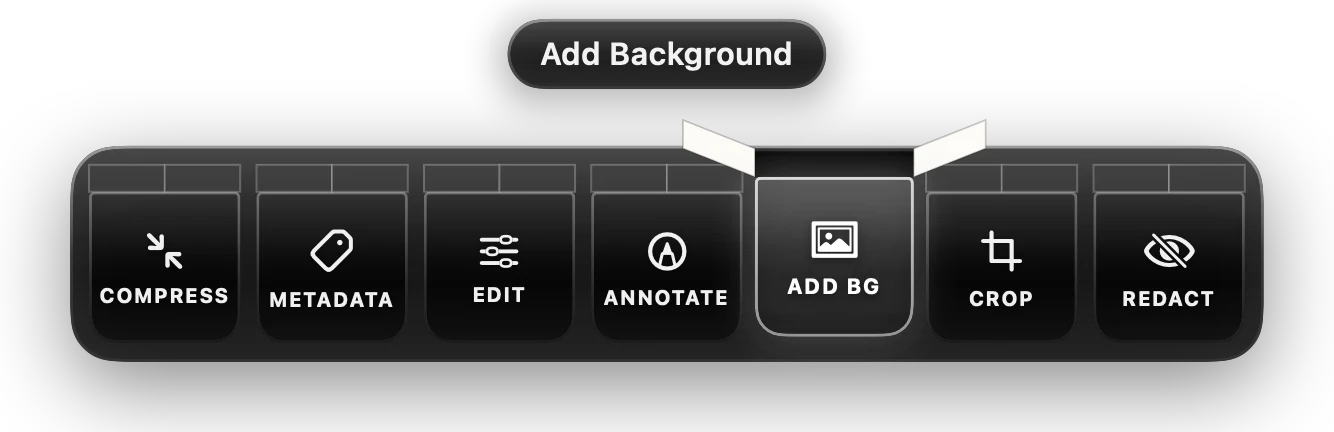
No uploads, no account. Error reports, if you allow them, never include your files.
Waits in your menu bar (or the system tray on Windows) without touching the processor.
Measured on a Mac.

Isomer lives in your menu bar or system tray and waits for the next drag.
Free for Mac and Windows. Mac: Apple silicon, macOS 14 or later. Windows: 64-bit Windows 10 (version 2004) or later, or Windows 11.
On Windows, if you see “Windows protected your PC”, click More info, then Run anyway. Isomer isn’t code-signed yet.
Isomer is free. If it saves you time, you can buy me a coffee.
Buy Me a CoffeeQuestions, ideas or a file Isomer can't handle? Get in touch.